
SongbookPro Documentation
The Official SongbookPro documentation may be found here:
SongbookPro Documentation. It is comprehensive and also includes some useful tutorial videos.
Lost Access to Shared Library?
This is a frequent problem, so merits its own section – you had access to the all@c Bude shared library using the SongbookPro app, but now you cannot find it! This mostly happens when you stray away from shared music part of the App (confusingly called ‘groups’) into the locally stored personal music library within the app (confusingly called ‘folders’). This video tutorial shows your way back to the ‘groups’ part. There are various ways back, depending on which path you have strayed along – the video shows them all, just stick with it till you find ‘your’ path. Should you prefer the attached document summarises the steps
Other Frequently Asked Questions (FAQs)
Preparing to use SongbookPro
How do I get the SongbookPro App?
- Go to https://songbook-pro.com/download/, then press the icon for your type of tablet : Android, Apple IOS, Amazon Fire or Windows; not Apple Mac.
(Note there are many similarly named products so make sure you use this link. Also there is absolutely no need to pay.) - You will be taken to appropriate app store, where you press ‘Install’ (or similar).
- The App will be loaded onto your tablet; Open it to check the download worked.
- You do not need to do anything further with it at this stage.
How do I join the All@C Library?
- Advise Ron the email address you will use for the SbP Account.
- ‘SongbookPro Groups’ will then email you an invitation to join the SbP All@C Group.
- Touch the ‘Accept Invitation’ icon.
- You will then see a ‘Sign In’ panel. Press the ‘Sign up Now’ link
- You will then be asked to verify your email account
- Then set up account details – including a personal password and Press ‘Create’.
- You will then see a Welcome display with a ‘Join’ button next to “All@C Bude”.
- Press Join then you will see a display of the group’s music and Sets.
How do I link the App to the All@C Music Library
- So now you have a SbP account, which is authorised to use the All@C Bude Group Music Library. All you now have to do is to tell the App!
- Open the App, press the menu icon (3 bars top left). Press the ‘Settings’ gearwheel item at the bottom of the menu.
- Select SongbookPro Groups within the Settings Menu, press the ‘Login’ button, then enter your SbP email address and password
- Press enter and you will have set up the app to access the All@C Bude Group (see below for more details) If you have difficulties, look at this documentation: https://songbook-pro.com/docs/groups/logging-in/. Happily you only have to do this once!
Should I use the SongbookPro (SBP) app or the SBP website?
- The SbP App on your Tablet is what you should use for almost all activities. By the way, once you are logged in (see previous FAQ), there is no real reason to log out of the App!
- You might have noticed you can access your SB Account and Group music through an online Website (http://groups.songbookpro.app). Unless you are an Editor or want to change your login details, we suggest you give this a miss!
What is the difference between ‘Groups’ and ‘Folders’??
The app can access two types of song libraries called Groups and Folders.
- Groups – this type of library contains our shared music. It is stored centrally, updated by our band leaders and downloaded to our tablets, both when you first sign up for a group’s library and whenever updates are made.
- Folders – this type of library is your personal library and is only stored on your tablet and only updated by you, SBP calls this your ‘Local Library’. This facility is available to all band members, but you don’t have to use it if you don’t wish to.
Both types of library normally need Wifi access whenever updates are made, but you do not need wifi when displaying music for performance or rehearsal.
How do I display the all@c Bude Library?
You need to display ‘Groups’. You achieve this using the menu/song list panel on the left-hand side of the App Display. To make the change can be a tad clunky; there are up to four steps:
- If you are currently displaying music and the menu is hidden, first press the three-bar menu icon
on the left of the music header display:
- Or else if you are currently in the Settings Menu, press the left arrow at the left of the header bar:

- Press the Songs Icon at bottom of menu/song list display:

- Now keep on pressing the left arrow at the top of the menu/song list:
 …until you see: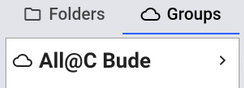
- Press ‘Groups’ for the shared all@c library or ‘Folders’ to see your local library.
- A key next step is to make SongbookPro display the detailed music list for your choice. Either press All@C Bude (if you have chosen ‘Groups’) or ‘All Songs’ (if you have chosen ‘Folders’) to register your choice.
Updating my Library
- Complete Re sync – For most members, this will only be required when you first link your SongbookPro app to the All@C Bude library, by logging into your account and touch the All@C Bude library link. It should only be required again if you log out of the app, e.g. to change your password. It is strongly recommended that you don’t log out of the app.
Note a complete re-sync can take five mins or more – be patient! - Updating to add new or changed songs and Sets (playlists) – This happens automatically whenever you turn on your tablet/Ipad and launch the SongbookPro App – as long as it is connected to the Internet. When you enter the ‘All@C Bude Library’, it will include any updates; depending on the scale of update this may take a few moments. Furthermore, as you use it, SongbookPro will automatically check every ten minutes or so for any further changes.
Learning some useful tricks
How do I change between light and dark display?
You have two options for the general display ‘theme’: light or dark, which relates to the type of background. To change these requires two actions:
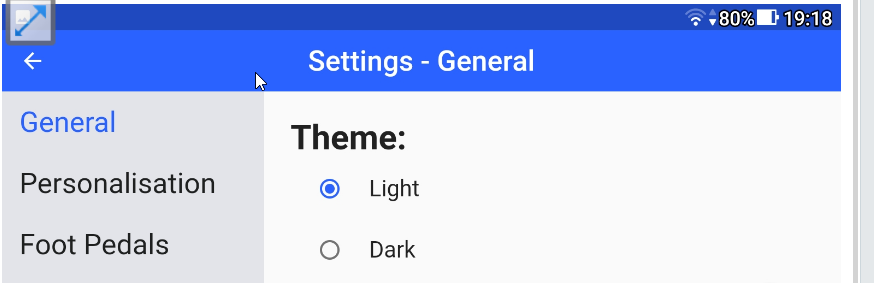
- First set the overall theme: touch settings () , then ‘General’ and at the top you will see ‘Theme. Select appropriate option:
- Next set the theme for PDF songs (which, alas, is not affected by the over Theme setting above). In ‘Settings’, touch ‘Advanced’ then scroll down right-hand display until you reach ‘PDF Settings. Turn on ‘Invert pdf colours:

- Having made changes, just return to the song list, the changes will be automatically saved.
Sort Order of Song List
Underneath the search bar (at the top of the Song List) is the ‘Order By’ list. Touch the little down arrow right of ‘Title’ etc (not the big one further right): and you will see :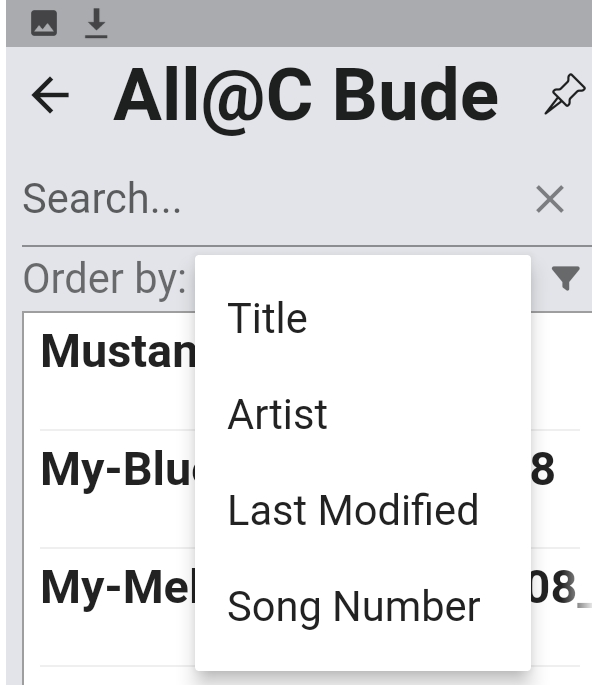
The ‘Title’ option is the default, the ‘Last Modified’ shows the music grouped in descending order of load date, with dates shown in blue – great for finding out what is new! The other two options (‘Artist’ and ‘Song Number’) are not currently relevant.
How do I Find a song?
When you are looking at the All@C Library, (or the equivalent in the Folders setting), the App has a number of ways to help you find songs:
- Use the entire library list: then scroll up/down to find your songs. This is the default method, but for large libraries can take some time.
- List songs by initial letter: showing songs whose names start with a particular letter. Just touch any initial letter heading in the full list (shown in bright blue); you will then be shown all the initial letters available, click on one and you will see all the music starting with that letter e.g.:
 then
then 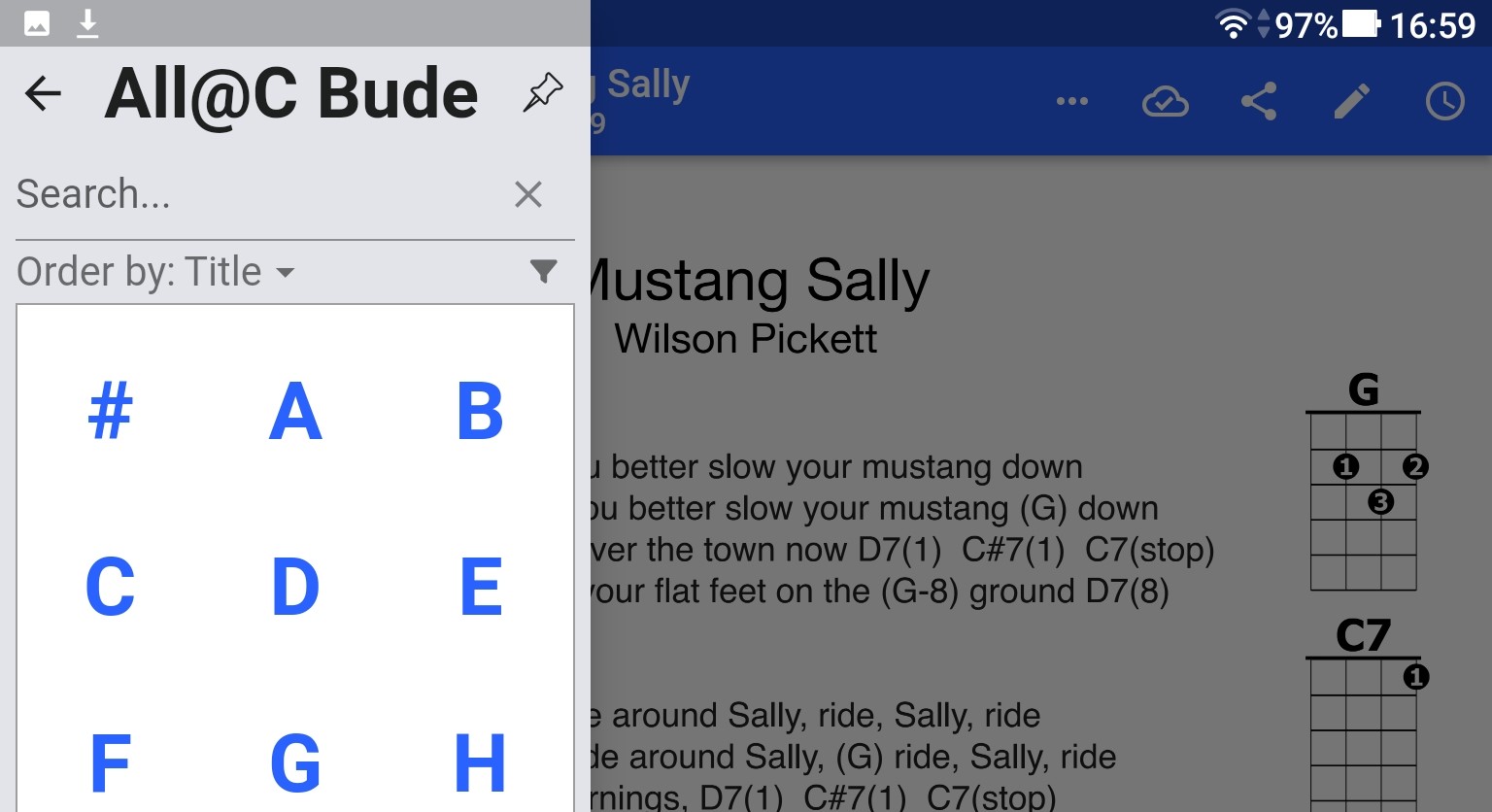 then
then
- How to search for songs. At the top left of the screen you will see the Search facility. Touch the Search bar/word and enter the first letter, or any few letters within the song title, to display a song list.. As you can see, it is quite clever in its search! Press x in the search bar to cancel.

Once you have your desired piece displayed within the songlist on the left, touch the piece and it will be shown in full on the right. Once finished, press the X icon to reset the search.
How do I manage ‘Live Buttons’ in my Song display
You may notice six buttons at the bottom of the Song Display:

You can sort these, remove some or all of them and even change brightness to make them more or less intrusive. At the moment most are unlikely to be relevant, except perhaps the scroll button – so maybe just leave that there.
For information on the buttons and how to change them look in SbP Documentation
Dealing with multi-page songs
Where a song is longer than one screen, you will have to move onto later pages. You can do this by moving the screen down with your finger, or by (buying and) using a foot-pedal to move page display up or down; speak to Keith K for advice on this.
You can also use the scroll facility built into the App. Click on the arrow icon, bottom right of the song – it will change to green  if scrolling is possible.
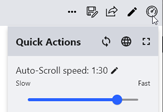
You can change the speed of scrolling by tapping quick action button (top right) then slide the Auto-Scroll slider to the right (faster), or left (slower):

Else, if you hold down the green icon, two blue icons will appear above – tapping the top one will slow the scroll, tapping the bottom one will speed it up
How can I display chord charts?
Easily! SbP defaults to showing Chord Charts automatically – with the proviso that it can only do this for Songs entered as text, ie not as a pdf. At the moment, that means very few, but the numbers will increase. Look at “White Cliffs of Dover” as an example.
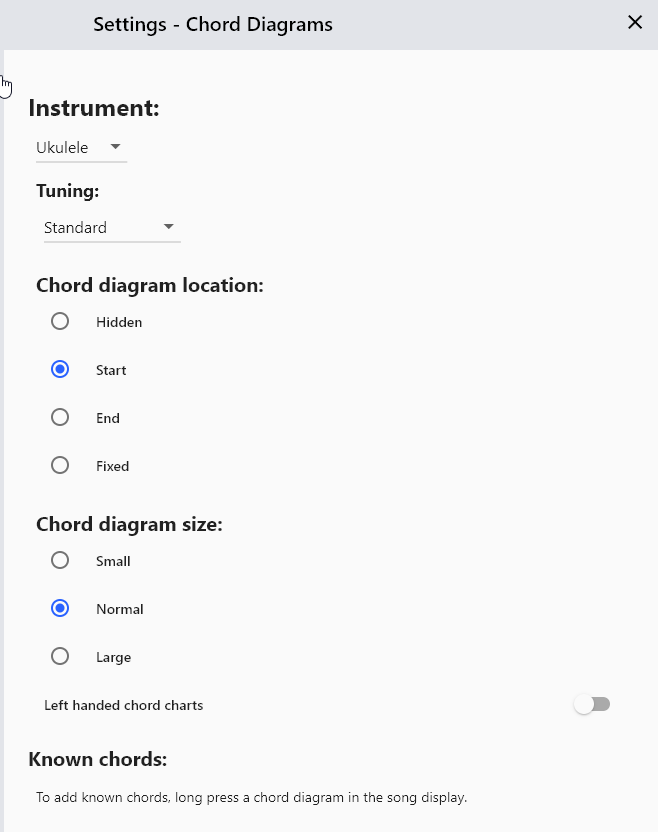
Go to Settings, then Chord Diagrams and you will see a cornucopia of options-you can select instrument,tuning and even left-handed displays.
The diagrams can be in a variety of sizes and locations. A key Option is ‘fixed’, which will display them at the bottom of the screen-useful for muti-paged songs!
Clever tips with Chord Charts
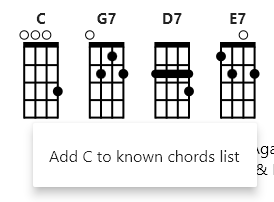
- Hide known chords long-press on a chord chart and will ask you if you want to hide the chart for this chord in all songs (on ‘this’ device). (Note a list of ‘known chords will shown at the bottom of ‘Settings – Chord Diagrams’, where they can be deleted (ie un-known)
- See alternative chord fingerings – a quick tap on a chord will generate a display of alternative fingerings for that chord:
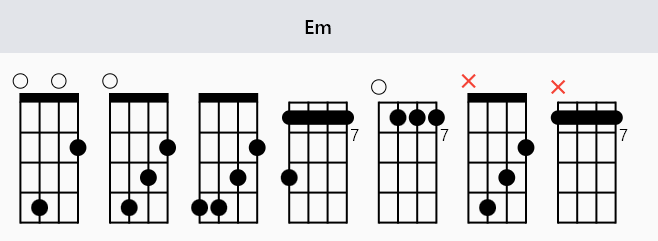
- Remember alternative chord – if you long-press on an alternative chord, it will remember that fingering for that song! Alas this doesn’t work for group (all@c) libraries, only for songs in any local library you have set up
My question isn’t answered here
Sorry to hear that. Chat or email with Keith, Lindsey, Paul or Ron and let them know what your question is. In the meantime, you might find an answer in the main SongbookPro Documentation
Edification for Editors (coming soon)
Editing songs
Watch this space!
Loading new songs
Watch this space
Copying songs between Local and Groups
Watch this space